Airtable sync
Mirror your event into an Airtable base so the automations your team already built keep firing.
Open Event settings — bottom of the sidebar — then the Integrations tab, and press “Connect Airtable”.
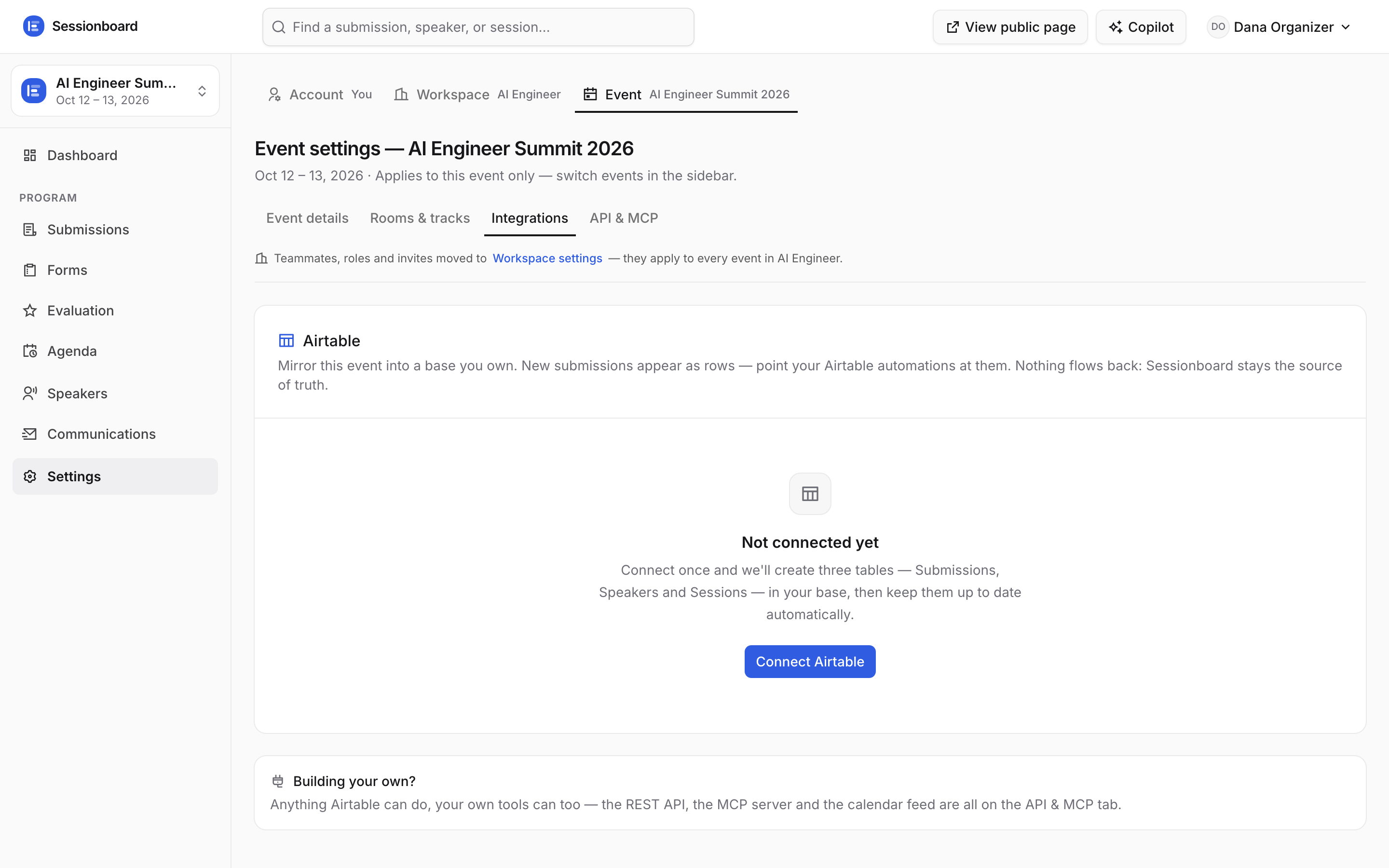
Event-scoped, like every tab on this page — each event mirrors into its own base. Webhooks sit underneath, for when you'd rather be called than polled. Paste a personal access token from airtable.com/create/tokens and your base ID.
The token needs four scopes:
data.records:read,data.records:write,schema.bases:read,schema.bases:write. The base ID is theapp…part of the base URL.Connecting creates three tables in your base — Submissions, Speakers, Sessions — and fills them.
If those tables already exist, Trackstage adopts them instead of making duplicates. Rows are matched on a Trackstage ID column, so re-syncing never doubles anything up.
From then on it keeps itself up to date: within seconds of a change, plus a sweep every five minutes.
The card shows when it last synced and how many rows are in each table. “Sync now” forces a run.
Optional: let Airtable write back — one switch, then one tick per column.
Out of the box the sync is one way: Trackstage writes to Airtable and never reads back, so anything you type there is overwritten on the next sync. That is the safe default and most events never need more.
Turn on Let Airtable write back and you get a checklist of exactly which columns Airtable may change. Tick Status alone to triage in a grid; add Title, Description, Track, Tags and the rest to edit submissions there; add the Speakers columns to bulk-fix bios and job titles; add the Sessions columns to move things on the agenda. Anything you don’t tick stays read-only.